
Implementing MetaTrader 5 in Docker: Unlocking New Online Trading Possibilities

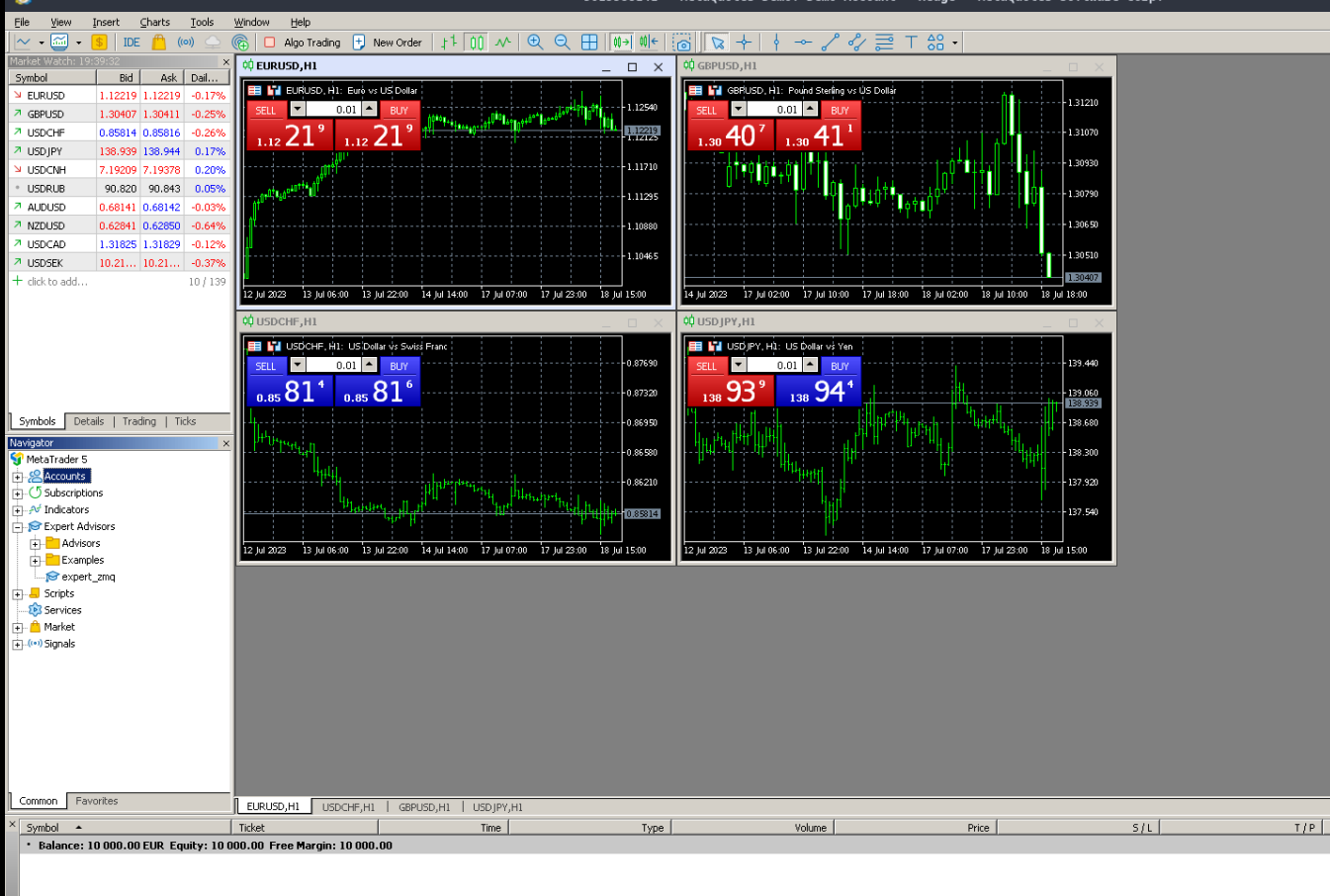
In the dynamic world of online trading, a robust, adaptable, and efficient trading platform is a foundation for success. As the architects behind SmartBots, we envisioned a platform that works with any operating system, is microservices-focused, scalable, and ready to run with a single command. To meet these ambitious objectives, we decided that all services should be Dockerized. However, we faced a stumbling block: what to do with programs or services that depend on Windows?
Fortunately, we found a solution to this problem: the integration of MetaTrader 5 (MT5) with Docker, a powerful combination that we will explore in this article. MT5 is a potent online trading application that offers lots of features that assist in various trading activities like forex, futures, and more. Docker, on the other hand, is a popular open-source platform that allows developers to automate the deployment, scaling, and management of applications.
By integrating MT5 and Docker, we can get around the limitations of traditional trading setups, creating a system that is significantly more flexible and efficient. In this guide, we will walk you through the process of setting up MetaTrader 5 in a Docker container. You will learn how to make it accessible via Virtual Network Computing (VNC), a tool that allows you to control another computer remotely, and how to enable ZeroMQ, a high-performance asynchronous messaging library designed for use in distributed or concurrent applications.
By the end of this tutorial, you will have a Dockerized MetaTrader 5 instance, accessible via VNC, with ZeroMQ enabled.
Step One: Laying the Groundwork
The first step in creating an efficient trading setup is to prepare your MetaTrader 5 instance:
Download MT5: Go to the MetaTrader 5 website and download the most recent version of the software.
Prepare MT5 files: Open the app, go to the ‘File’ dropdown menu, and choose ‘Open Data Folder.’ Locate the MQL5 folder, copy it, then paste it into your MetaTrader 5 installation location, which is usually located in the ‘Program Files’ folder.
Step Two: Establishing the Project
Next, we adapt our project to the Docker environment’s requirements:
Clone the project repository: Obtain a local copy of the project repository from GitHub
git clone <https://github.com/SmartLever/Docker_mt5.git>Align directories: In the cloned repository, locate the MT5Resources folder. Copy the ‘libraries,’ ‘expert,’ and ‘scripts’ folders, and paste them into the MQL5 folder of your local MetaTrader 5 installation.
Consolidate resources: Copy all content from your local MetaTrader 5 installation and integrate it into your project by pasting it into the ‘Metatrader’ folder.
Step Three: Begin Execution
Now that our folders are in order, let’s get MetaTrader 5 up and running:
Run script: Initiate the execution of MetaTrader 5 by running the ./docker_executable script.
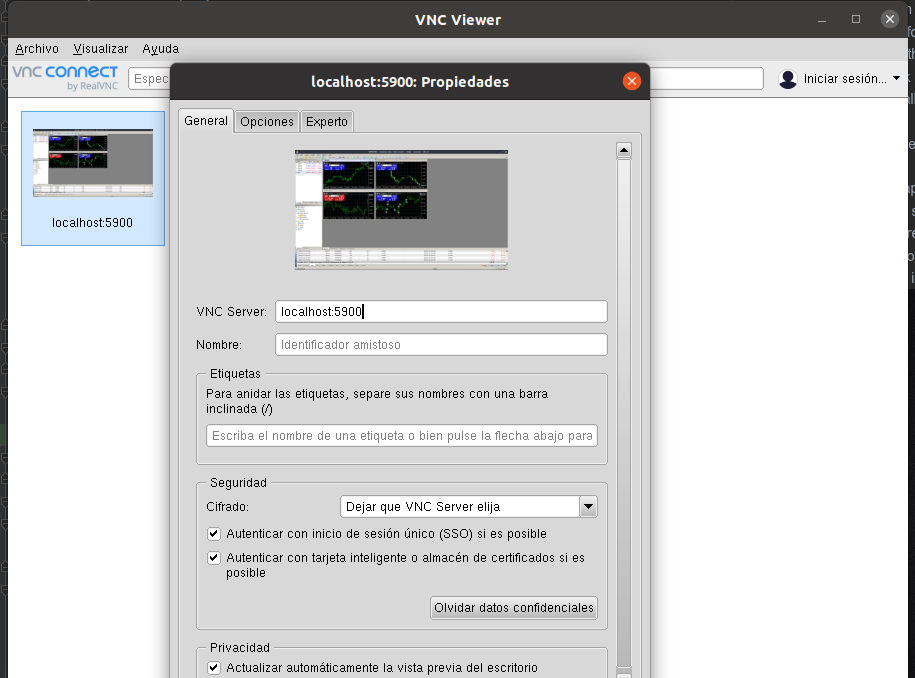
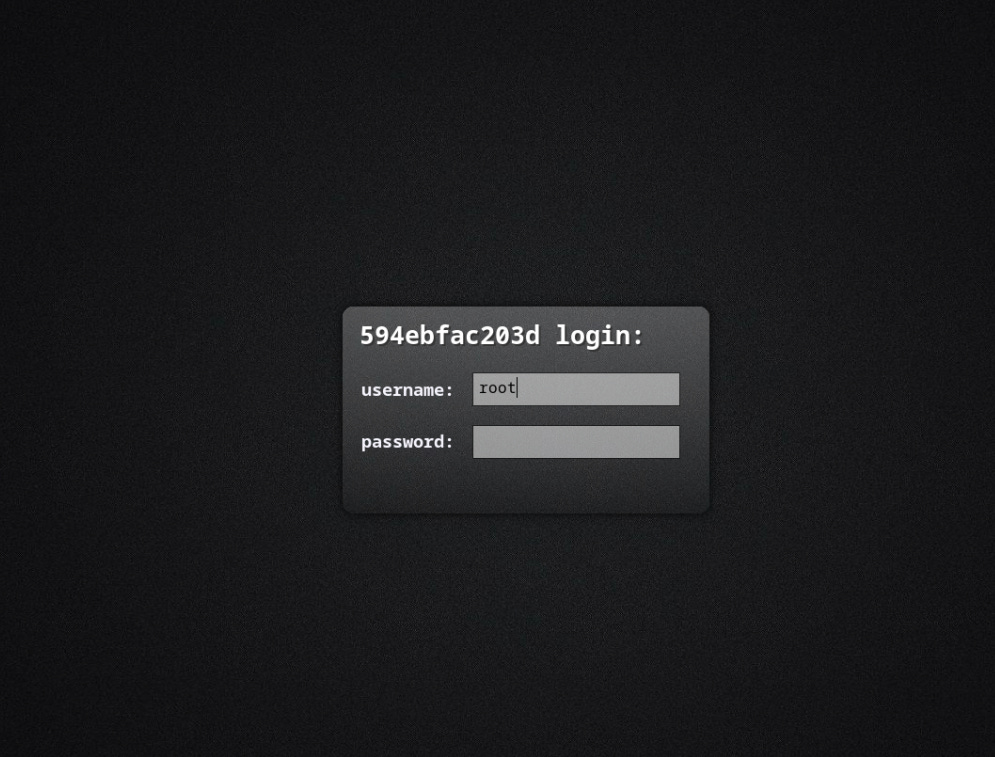
Access through VNC: To connect with the graphical interface of MT5, use a VNC client compatible with your operating system. Ensure you input the IP where your Docker instance is running, followed by port 5900. For example, if your Docker is running on the local IP (localhost), you should input “localhost:5900”. Enter your username and password for access; in this example, both are ‘root’.
Step Four: Optimizing MT5 in Docker
After acquiring VNC access to MT5, it’s time to complete your setup:
Log into MT5: Enter your MetaTrader 5 account details to access your trading platform.
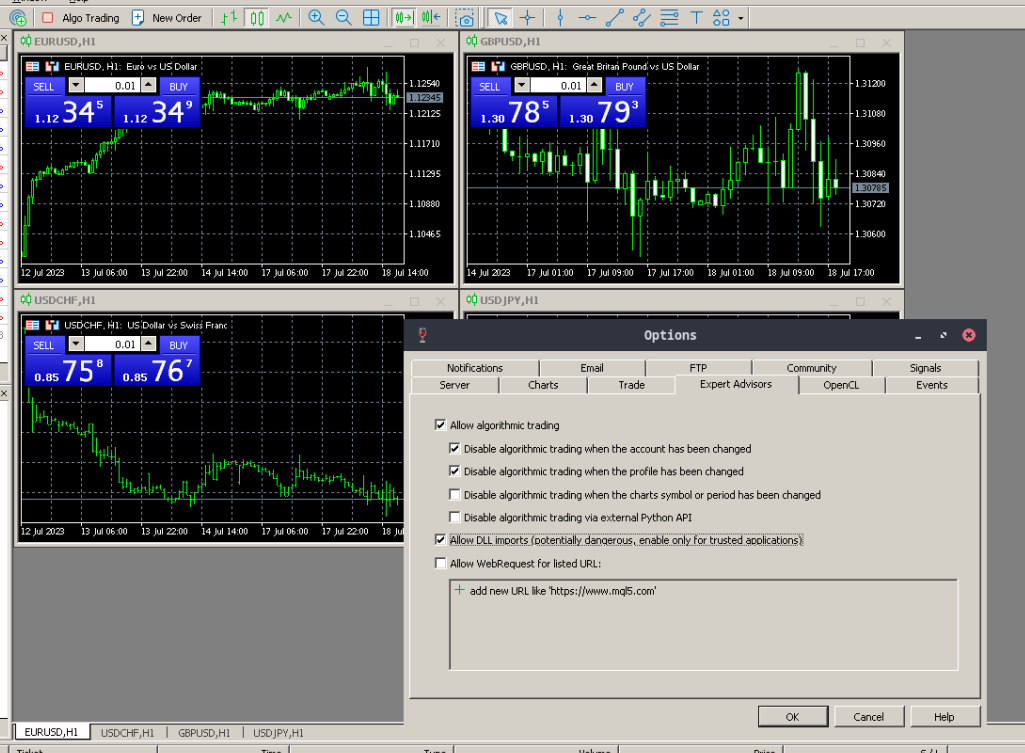
Enable features: To take full advantage of the Docker-MT5 integration, enable algorithmic trading and DLL imports from the settings.
Implement ZeroMQ: Use the expert advisor ‘expert_zmq’ to attach ZeroMQ to MetaTrader. Drag it onto the desired chart, adjust the parameters according to your needs, and click OK.
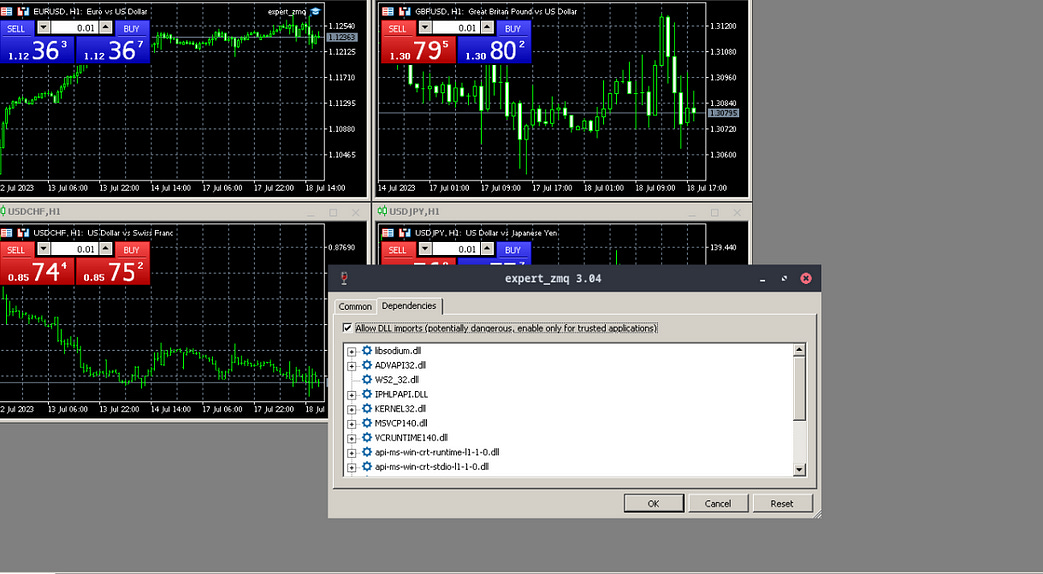
You’re ready to go! You now have a Dockerized MetaTrader 5 instance that can be viewed via VNC and has ZeroMQ enabled. The simplified operation allows for better resource use and provides you with a sophisticated trading configuration that is ready to take on the financial markets.
What comes next? With the powerful MetaTrader 5 and Docker setup, you are now prepared to explore sophisticated trading tactics. In subsequent articles, we will discuss how you may use this arrangement in conjunction with the SmartBots platform to fully realize the potential of automated trading.
We shall investigate:
Implement automated order placements at appropriate times based on your defined trading strategy, reducing manual intervention and the possibility of human errors.
Querying balances: Using automated commands, you may keep track of your account balance and manage your funds efficiently.
Keep a watch out for our upcoming blogs and get ready to automate and intelligently plan your online trading experience.
The train is in the station, and you can’t miss it, so join us on this journey. We are an open community and if you want to collaborate with us, please send us an email: andres@smartlever.tech